Testing a SwiftUI app on the iPhone Duo simulator, headless
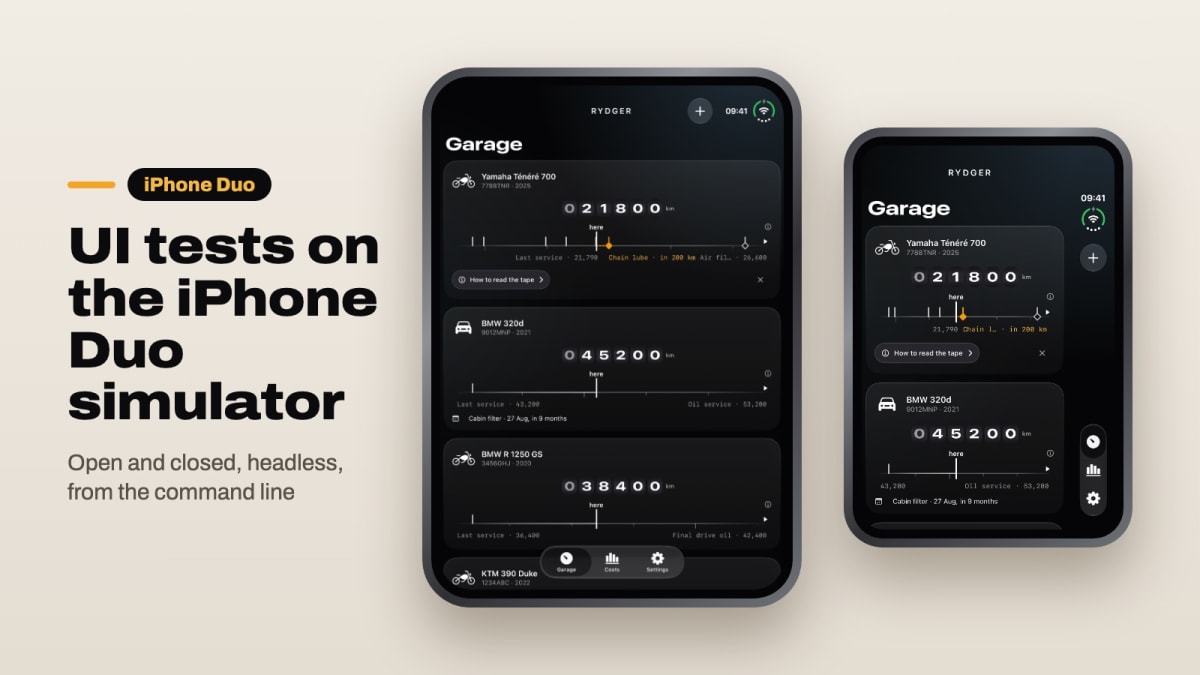
Rydger UI tests on the iPhone Duo simulator: Cancel and Save vanished, SpringBoard crash-looped, and the inner screen needed a workaround. Here are the fixes →

Software engineer · Málaga
On this page
Short answer: on the iPhone Duo simulator, Cancel and Save vanished from my app’s sheets as soon as the form scrolled. The agent on the Duo story tried eight fixes and none worked. One line did: toolbarVerticalBehavior(.disabled). Getting there also cost me a SpringBoard crash loop, a simulator my own cleanup script deleted, and a test that couldn’t tap a field. Each one is below, with the fix.
The app is Rydger, a SwiftUI app with an iOS 18 deployment target. The setup: Xcode 27.2, the iOS 27.1 simulator runtime, headless, the way my agents run every test.
Cancel and Save vanished as soon as the form scrolled
Rydger’s add and edit vehicle forms live in a sheet: a NavigationStack, a Form, and a toolbar with .cancellationAction and .confirmationAction items. On an iPhone 17 Pro simulator, both add-vehicle UI tests pass. On the Duo, they failed. The test that edits the plate failed with “Failed to tap Save”, and the accessibility tree from the failed run showed an empty navigation bar.
The agent working on the Duo story reproduced it with a minimal Form and, by its own account, tried eight variants: removing the top fade, the drag indicator and the keyboard Done button, changing contentMargins, the principal toolbar item, safeAreaInset, presentationSizing(.page) and forcing toolbarVisibility. None brought the buttons back. It logged the bug as unresolved and moved on.
One modifier brings them back
Grok’s search pointed me to Sarun’s post on sheets on the Duo: on the closed device in portrait, iOS moves a sheet’s close and confirm buttons into a vertical bar, and you can turn that behavior off. He suggests turning it off for one-button sheets. Mine have two. I never saw a vertical bar in the simulator, only buttons that disappeared on scroll, but disabling the behavior brought them back. The modifier ships in the iOS 27.2 SDK and works back to iOS 27.1:
private extension View {
    /// iPhone Duo (iOS 27.1+) moves a sheet's Cancel and Save into a vertical toolbar,
    /// and on the 27.1 simulator both vanish once the form scrolls: keep the usual bar.
    @ViewBuilder func horizontalToolbar() -> some View {
        if #available(iOS 27.1, *) { toolbarVerticalBehavior(.disabled) } else { self }
    }
}
Applied to the shared sheet, the next run showed Cancel and Save still in the bar after scrolling (y=112 in the accessibility tree). The plate test still failed, for a different reason further down. I asked Grok to search X and the web for this bug between September 10 and November 5. It found no reports, so I can’t say whether Apple considers it a bug or intended behavior.
Faking a fold with simctl crash-looped SpringBoard
To capture the inner screen, the agent tried to “open” the device by turning its screens on and off with xcrun simctl io <udid> screenConfig … power. The simulator’s SpringBoard then crashed about every five seconds: 14 crash reports between 18:18:50 and 18:20:20, all but the first an assertion in -[SBMainDisplayConfigurationTransformer transformDisplayConfiguration:], and each one popped up a macOS crash dialog on my screen. An hour later, another agent ran the same screenConfig call on a second Duo simulator, and within a second it was crash-looping the same way.
A fresh Duo simulator that never saw a screenConfig call booted headless with simctl boot and logged no SpringBoard crashes. Blake Crosley hit something similar in September: powering off the outer display “crashed the simulator’s system shell”. Don’t fake a fold with screenConfig.
My own cleanup script deleted the simulator
The fresh simulator then shut down on me twice and finally vanished from simctl list. My repo has a cleanup script for finished worktrees, and its --orphans mode shuts down and deletes every simulator named “Rydger Agent
There is no supported way to fold the simulator
simctl has no posture command. An Apple Developer Forums thread asks for one, and Apple hasn’t answered. In Xcode 27.2 the simulator window is Device Hub, which has the pose buttons, but my automation tool couldn’t click inside its window because it couldn’t tell which window it was looking at.
What worked was duoctl, a small open-source tool that sends hinge events to the simulator through private HID calls. An agent read its code before running it: a Python wrapper that calls xcrun and codesign and compiles a helper that runs inside the simulator, with no network calls. It works headless with Xcode 27.2:
$ duoctl -d <udid> open && duoctl -d <udid> state
"hingeAngle": 180.0, "activeScreen": "inner", "orientation": "landscape", "sizePoints": [951.0, 669.0]
It’s private API, so the next Xcode can break it. For now it’s the only way I found to open the device from a script.
Capture the inner screen from the Mac, not from XCTest
Two more traps once the device is open:
- Screenshots. Another developer reports that XCTest screenshots of the inner screen come out black, and only the active screen renders, so I never looked at them.
simctl io <udid> screenshot --display=<awake screen>from the Mac works, andduoctl screenshotpicks the screen for you. - Taps. On the inner screen, XCUITest never reported my elements as hittable, even after I rotated to portrait, but
element.tap()still worked.
So the store-screenshot test pauses at each frame and the Mac takes the picture:
func snap(_ app: XCUIApplication, _ name: String) {
    if let pause = ProcessInfo.processInfo.environment["SNAP_HOST_PAUSE"].flatMap(Double.init) {
        print("SNAP-HOST-READY \(name)")
        Thread.sleep(forTimeInterval: pause)
    }
    // ... the usual XCTAttachment
}TEST_RUNNER_SNAP_HOST_PAUSE=4 xcodebuild test-without-building … | while IFS= read -r line; do
case "$line" in *SNAP-HOST-READY*)
name=${line##*SNAP-HOST-READY }
duoctl -d "$SIM" screenshot "out/$name.png";;
esac
doneOn those runs the agent skipped the hittable check and rotated the interface to portrait, and the test then stepped through all six store frames on the open device, in English and Spanish.
The UI test scrolled the field above the sheet’s bar
Back to the plate test. With Save fixed, it failed with “Neither element nor any descendant has keyboard focus”. The scroll loop had pushed the plate field up to y=75, and the sheet’s toolbar starts at y=106. The swipes carried the field past the bar and the tap missed it; I didn’t measure why it happens on the Duo and not on the iPhone. An agent changed the loop to swipe slowly, up or down, until the field sits below the bar, and reran it: it passes on the Duo and on an iPhone 17 Pro.
App Store Connect has its own iPhone Duo slot
Apple will require these screenshots starting in April 2027 for any app using the iOS 27.1 SDK or later. The slot takes the outer screen at 1398 × 2034 and the inner one at 2007 × 2853 in portrait, plus landscape versions. Product pages that include them show a badge saying the app is made for iPhone Duo. The simulator’s screens are exactly those sizes, so the raw frames fit. One catch: Apple doesn’t accept screenshots with an alpha channel, and my inner-screen PNGs from the simulator had one. My upload tool refused them before sending them, and converting to JPEG fixed it.
What still doesn’t work
- The first tap. With the number pad showing, the first tap on “More details” in the add-vehicle form doesn’t open it on the Duo. On the iPhone 17 Pro it does. I haven’t figured out why.
- Tent posture. App Store Connect only asks for the outer and inner screens, so I didn’t check tent mode at all.
- The trade-off of the fix.
toolbarVerticalBehavior(.disabled)opts out of the vertical bar Apple designed for the closed device. My buttons are back, but my sheets don’t behave the way Apple intended on the Duo. - The simulator isn’t the device. On X, iOS developer Ehsan Azish wrote that a Duo layout that looked right with the Xcode release candidate was wrong on the physical device: the tab bar fell back to the regular iPhone layout. I asked whether the simulator showed it too. “Only on device.” Until I get my hands on one, everything above is “works in the simulator”.
First move
If you build your app with the iOS 27.1 SDK:
- Run your sheet UI tests on a fresh Duo simulator, headless. The vanishing-toolbar bug never appears on a regular iPhone.
- If buttons vanish, try
.toolbarVerticalBehavior(.disabled)on the content inside the sheet’sNavigationStack. It keeps the buttons and gives up Apple’s closed-device bar. - Leave
screenConfigout of your scripts. It crash-loops SpringBoard. - Check every simulator’s name against your cleanup rules. Mine matched one, and another agent’s cleanup deleted it.
- Capture the inner screen from the Mac, not from XCTest, and export JPEG for App Store Connect.
Sources
- Sarun Wongpatcharapakorn, Sheets and fold avoidance on iPhone Duo, read November 5, 2026.
- Blake Crosley, Xcode 27.1 Beta: Your App in the iPhone Duo Simulator, read November 5, 2026.
- Apple, Screenshot specifications, read November 5, 2026.
- duoctl, tag v0.2.1.
- What I based this on: SpringBoard
.ipsfiles in~/Library/Logs/DiagnosticReports/, the xcresult bundles of each run and Rydger’s commits of November 5, 2026. The repo is private.
Related reading: Claude Code skills vs subagents and the shared simulator and the overloaded Mac and the agent’s botched report.
P.S. Have you tested on a real iPhone Duo yet? Tell me on LinkedIn what the simulator got wrong.
Related Posts

Claude Code on iOS: spotted the overload, botched the report

Claude Code skills vs subagents: the shared simulator bug
